Teams
Group members and keys into teams, so spend, budgets and request visibility follow your org chart.
A team is a group of keys and the people responsible for them — usually a product team or a service. A team does three things:
- Spend. Every request is counted against the team of the key that made it. That is what chargeback and the top bar's team picker use.
- Budget. A team can have a monthly budget, enforced on all of its keys together.
- Visibility. When request visibility is scoped to teams, a team's members see the traffic of the team's keys. See Who sees whose requests.
Before you start
| Requirement | Detail |
|---|---|
| Where | Top bar → Governance → Access, below Members and Request visibility. The same table, without the visibility control, is on Budgets & Limits → Teams. |
| Role | Owner or Admin to create, edit or delete teams and change who is in them (org.members.write). Everyone can see the table. |
| Plan | Every plan. |
Create a team
- Click Create team.
- Fill in the dialog and click Create.
| Field | What it does | Default |
|---|---|---|
| Name | Shown across the console and in the top bar's team picker. Must be unique in the organisation. | — |
| Monthly budget (optional) | The team's ceiling for the calendar month, counted across all its keys. Must be more than $0. | No budget |
| At the budget | Alert, Downgrade or Block, or inherit the organisation's action. | Inherit the organisation's |
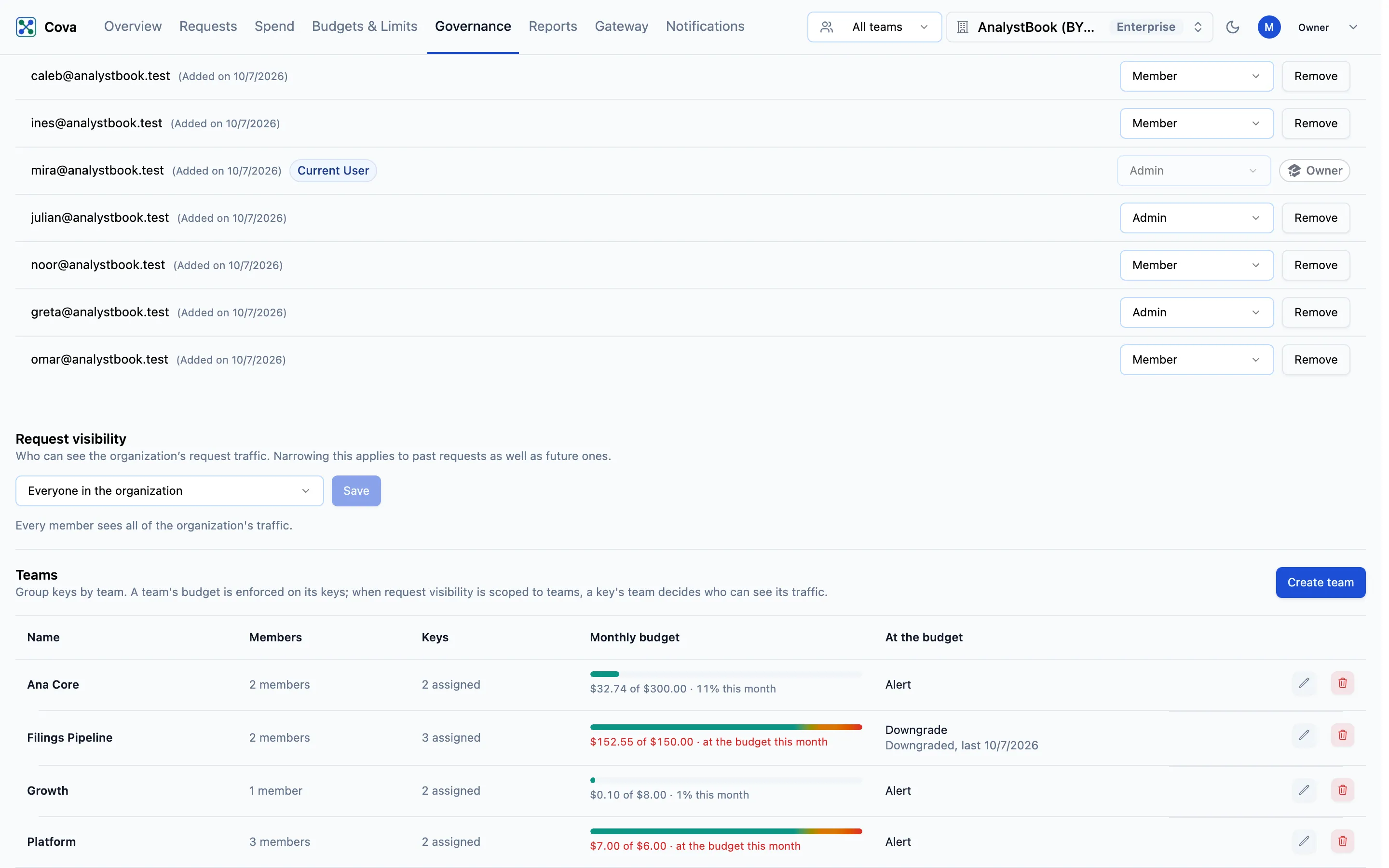
The table shows each team's Members, Keys, Monthly budget used this month, and what happens At the budget. How team budgets are enforced is on Budgets & Limits.
To edit a team, click the edit icon at the end of its row.
Add people to a team
- Click the member count on the team's row (for example 3 members).
- In the panel, choose someone from Add a member... and click Add.
- To take someone off the team, click Remove beside their name.
Only people already in the organisation can be added. While request visibility is scoped to teams or individuals, only the owner can add people to a team, because doing so changes what they can see.
Put keys on a team
A key's team is set on the key, not on the team:
- When you create a key on Governance → Keys, choose its Team.
- For an existing key, click Edit on its row and change Team.
See API keys and virtual keys. Moving a key changes where its future spend is counted; requests it already made stay with the team they were made under.
The Cova-Team-Id request header is recorded for your own filtering only. Team budgets, chargeback and visibility always use the key's team, so a request cannot move its spend to another team by sending a different header.
Delete a team
Click the delete icon on its row, then Delete team. A team that still has keys cannot be deleted: move its keys to another team first. Keys are never deleted with a team. The team's members are taken off it; their accounts are not affected.
Related
- Team chargeback — monthly spend per team for finance
- Budgets & Limits
- Members