Scheduled reports
Choose who should receive a weekly summary by email or Slack.
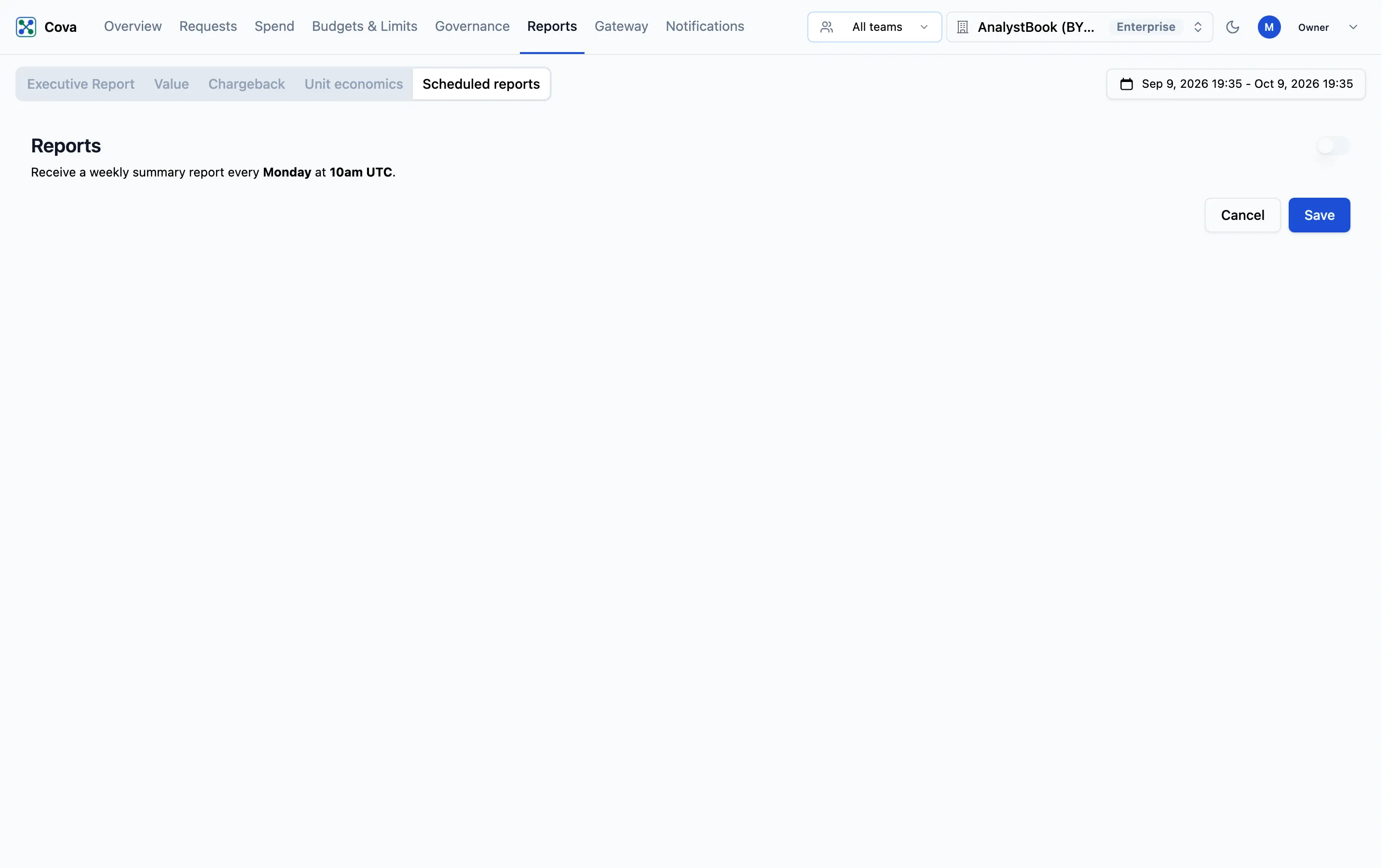
Scheduled reports has one setting: a weekly summary report, every Monday at 10am UTC, sent to the people and Slack channels you choose. There is no choice of report type, period or schedule.
CoreValue does not send the weekly summary yet. You can save recipients and channels on this tab, but no report is delivered today. Until it is, use Export PDF on the Executive report or Download CSV on Chargeback to share figures.
Before you start
| Requirement | Detail |
|---|---|
| Where | Top bar → Reports → Scheduled reports (/reports?tab=scheduled). |
| Role | egress.write, which owners and admins hold: the setting sends data out of your organisation. See Roles and permissions. |
| Plan | Every plan. |
Set up the weekly summary
Turn it on
Switch on the toggle next to Reports. The recipient options appear.
Choose recipients
| Option | What it does |
|---|---|
| Emails | On by default. Click Select emails to send alerts to and pick members of your organisation. Only members can be chosen; you cannot type an outside address. |
| Slack Channels | Switch on, then click Select slack channels to send alerts to and pick channels. If Slack is not connected yet, a Connect Slack button appears instead; see Slack. For a private channel, invite the CoreValue app to it first. |
Choose at least one email or one channel.
Save
Click Save. You will see "Successfully enabled report" the first time, and "Successfully configured report" after that.
To stop the summary, switch the toggle off and click Save. Your recipients are kept for when you switch it back on.
Cancel clears the selections on screen without saving.
Related
- Executive report
- Slack
- Budget alerts: email and Slack alerts that are sent today