Budgets & Limits
Cap what the gateway spends — for the whole organisation, a team, a member, a customer or a single key — and choose what happens when a cap is reached.
Budgets & Limits is where you decide how much the gateway is allowed to spend, and what it does when it gets there. Before a request reaches the provider, CoreValue checks it against every budget that covers it.
Before you start
| Requirement | Detail |
|---|---|
| Role | Owner or Admin to create or change a budget. Members can view the page; the controls are disabled with the note "Owners and admins …". |
| Plan | Budgets and Alert only work on every plan. Block requests and Downgrade model need the Growth plan or higher; on Free they show a 🔒 Growth badge. |
| Where | Top bar → Budgets & Limits (/budgets). |
How budgets work
A request can be covered by up to five budgets at once — for example, the organisation's, its team's, and its key's own cap. Every one that applies must have room left; the first one that is full decides what happens:
| Budget for | What it counts | Set it on |
|---|---|---|
| Key cap | Spend through one virtual key | Keys |
| Member | Spend on every key a member owns | Members |
| Customer | Requests that carry your Cova-Customer-Id header | Customers |
| Team | Spend on every key assigned to the team | Teams |
| Organisation | All spend, every key | Organization |
True of every budget:
- Every budget on this page is monthly and resets on the 1st of the calendar month (UTC). A budget set mid-month counts the spend already made that month. Daily and yearly ceilings, in preview, are on Daily and yearly ceilings; there are no weekly budgets.
- Spend is what the provider charged, priced by CoreValue at the model's list price — whether the request used your own provider key or credits.
- Changes take effect within about a minute. The gateway caches budget settings for up to 60 seconds.
- If CoreValue cannot read a budget (for example during an outage of its own database), the request is served rather than refused. Budgets never take your traffic down.
What happens at the budget
Each budget has an action. You choose it for each budget, or leave it to follow the organisation's.
| Action | Organisation & team | Member & customer |
|---|---|---|
| Alert only | Request is served. The breach is recorded on the Actions tab and the alert recipients are emailed. | Request is served. |
| Downgrade model | The model is rewritten to a cheaper one from your downgrade mappings, and the request is served. With no mapping for that model, the request is refused. | The same, and the downgrade is recorded on the Actions tab. If the organisation or team budget already downgraded the request and there is no further mapping, it keeps that model. |
| Block requests | Request is refused with HTTP 429 until the month rolls over. | Request is refused with HTTP 429 until the month rolls over. |
Alert is not enforced on member and customer budgets yet. The request is served and nothing is recorded. On a member or customer budget, choose Downgrade to move them to a cheaper model, or Refuse the request to stop spend.
Set the organisation budget
Open the Organization tab
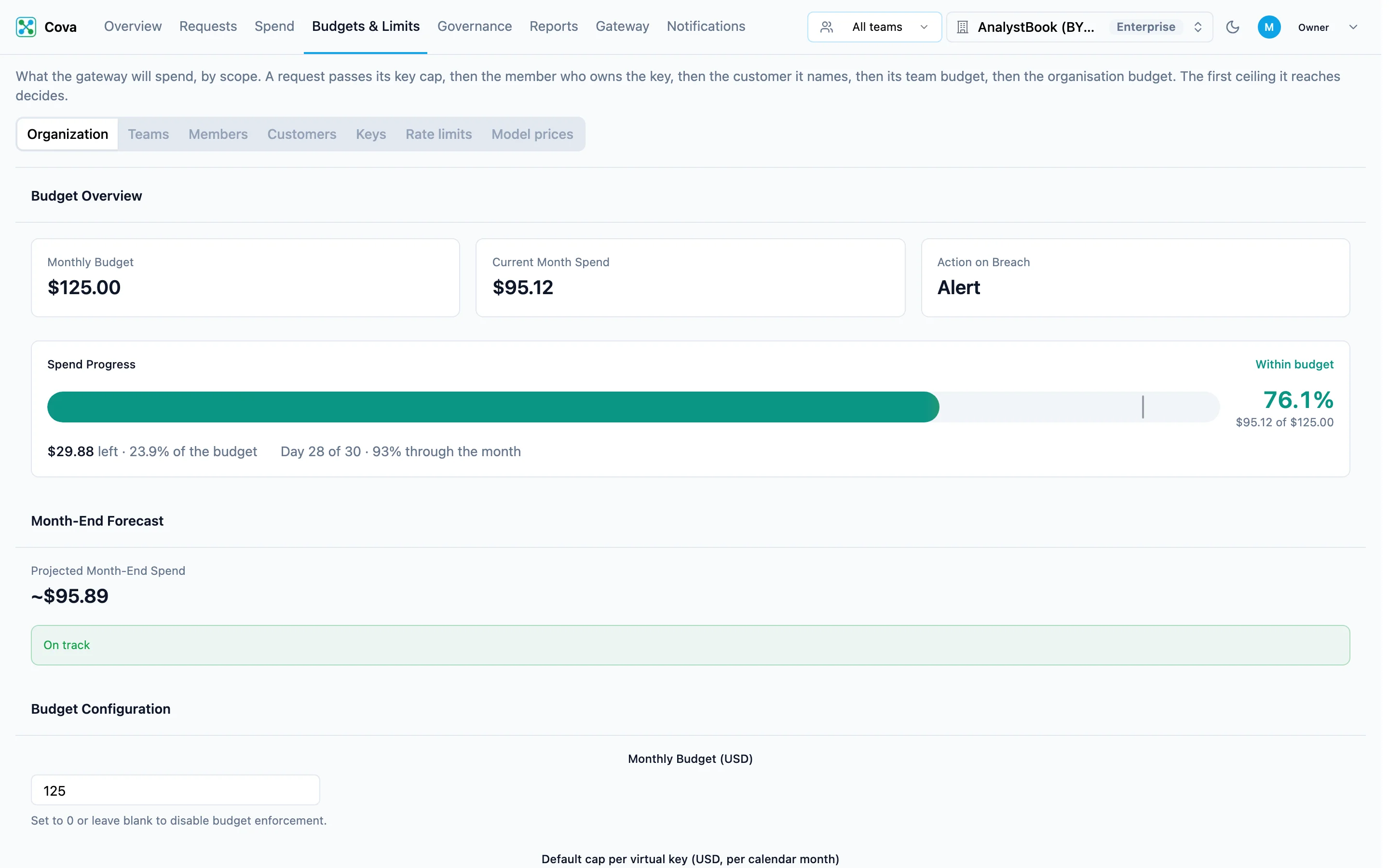
Go to Budgets & Limits → Organization. The top of the tab shows this month so far:
- Monthly Budget, Current Month Spend and Action on Breach.
- Spend Progress — how much of the budget is used, how much is left, and how far through the month you are.
- Month-End Forecast — the projected spend at the end of the month at the current rate, and whether you are On track or projected to exceed it.
Fill in Budget Configuration
Scroll to Budget Configuration.
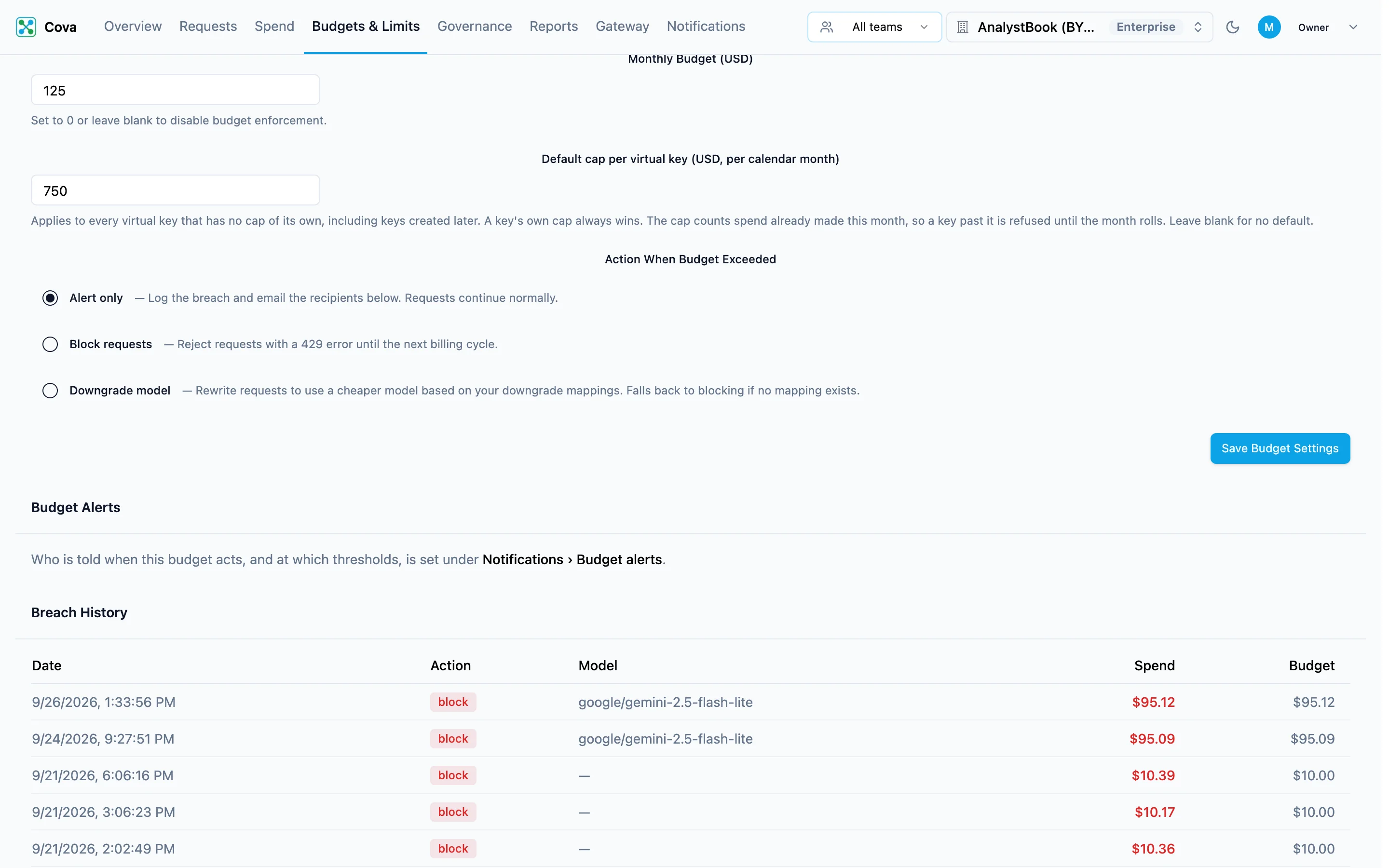
| Field | What it does | Default |
|---|---|---|
| Monthly Budget (USD) | The organisation's ceiling for the calendar month. 0 or blank turns the organisation budget off. | Blank (off) |
| Default cap per virtual key (USD, per calendar month) | A cap applied to every virtual key that has no cap of its own, including keys created later. A key's own cap always wins. A key already past it this month is refused until the month rolls over. | Blank (no default) |
| Action When Budget Exceeded | Alert only, Block requests or Downgrade model — see What happens at the budget. | Alert only |
Save
Click Save Budget Settings. You will see "Budget settings saved". The gateway applies the new budget within about a minute.
Downgrade mappings
When Downgrade model is selected, a Model Downgrade Mappings section appears under the form. Each mapping says "when the budget is exceeded, rewrite requests for this model to that one".
- Enter the Source Model exactly as your application sends it, for example
gpt-4ooranthropic/claude-sonnet-4-5-20250929. - Enter the Target Model to use instead, for example
gpt-4o-mini. - Click Add Mapping.
A request for a model with no mapping is refused, so add a mapping for every model you use.
Set a team budget
Teams group keys, and a team budget caps what all of the team's keys spend together.
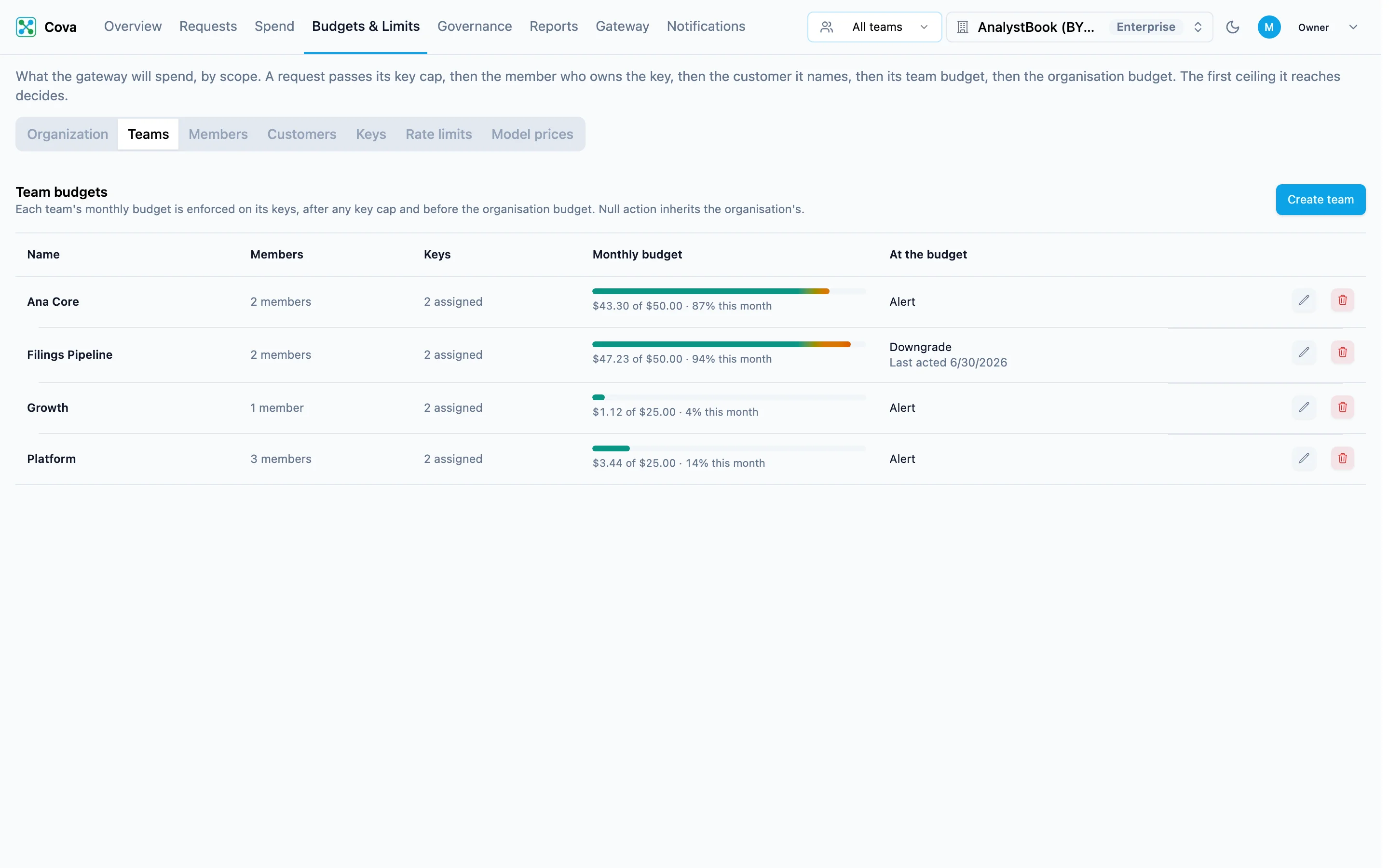
Open Teams
Go to Budgets & Limits → Teams. Each row shows the team's members, its keys, how much of its budget is used this month, and its action (At the budget).
Create or edit the team
Click Create team, or a team's row to edit it.
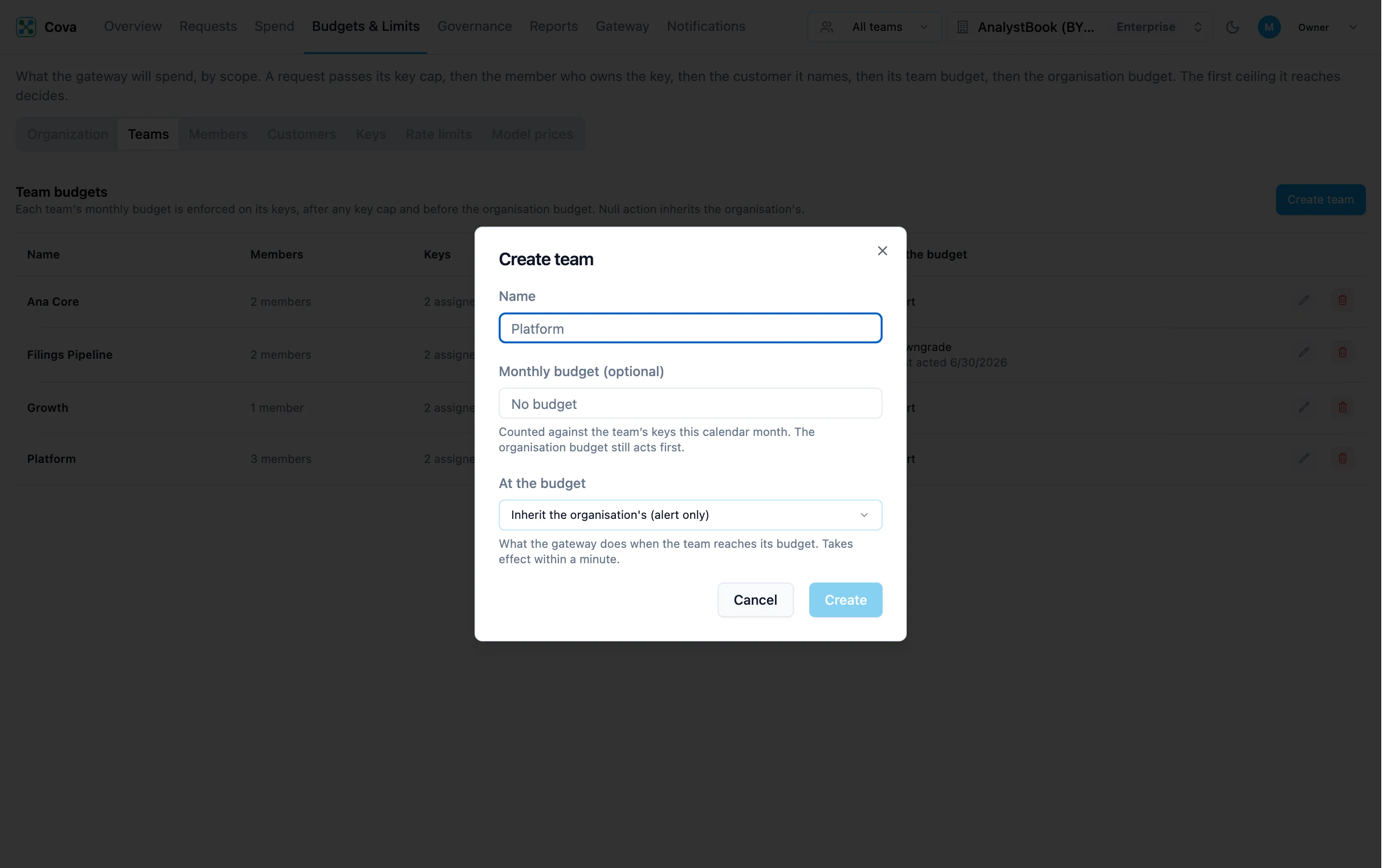
| Field | What it does | Default |
|---|---|---|
| Name | Shown across the console, and in the team picker in the top bar. Must be unique in the organisation. | — |
| Monthly budget (optional) | The team's ceiling for the calendar month. Must be more than $0; leave it empty for no budget. | No budget |
| At the budget | Alert only, Downgrade to a cheaper model or Block requests. | Inherit the organisation's action |
Set a member budget
A member budget caps the spend on every key that member owns. Keys with no owner are shared service keys: they count towards no member, so cap them on the Keys tab instead.
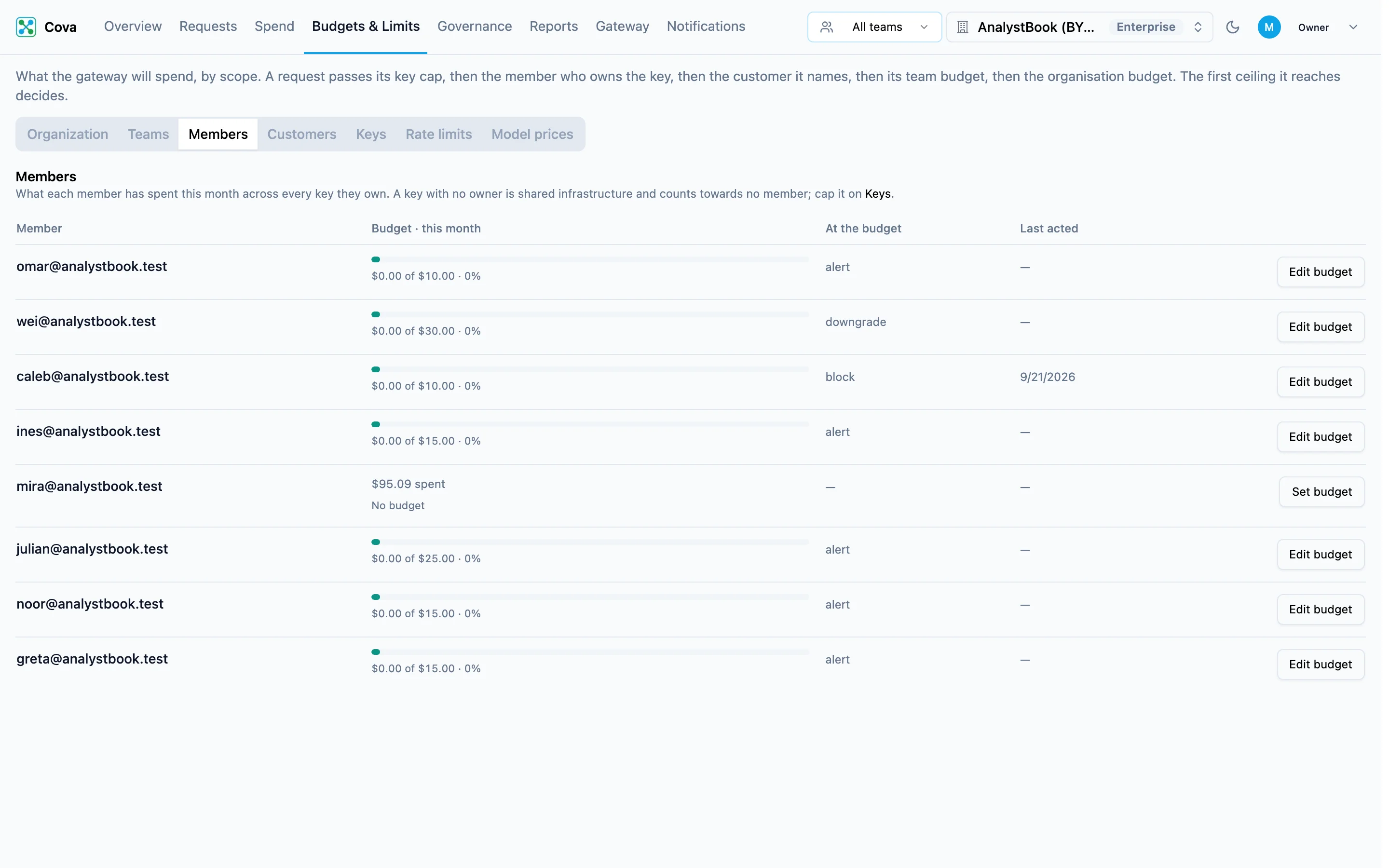
- Go to Budgets & Limits → Members.
- Click Set budget (or Edit budget) on the member's row.
- Fill in the dialog and click Save.
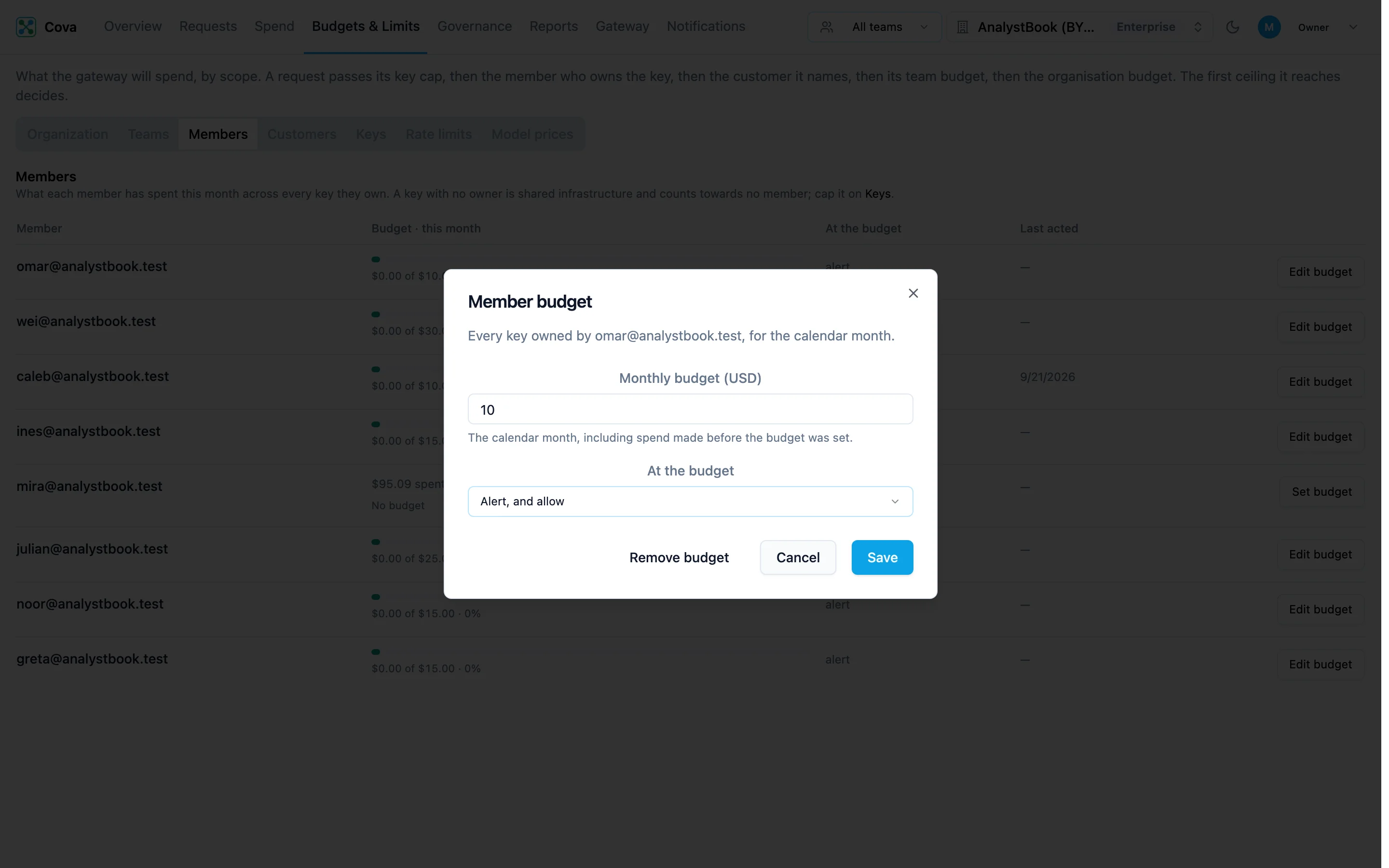
| Field | What it does | Default |
|---|---|---|
| Monthly budget (USD) | The member's ceiling for the calendar month, including spend made before the budget was set. | — |
| At the budget | Alert, and allow, Downgrade the model or Refuse the request. Only Refuse the request stops spend — see the note above. | Use the organisation's action |
To remove a budget, open the dialog and click Remove budget.
A plain member sees only their own row on this tab when the organisation limits request visibility.
Set a customer budget
If your product serves your own customers, send their ID on each request with the Cova-Customer-Id header. The Customers tab then shows spend per customer, and lets you budget each one.
curl https://gateway.corevalue.dev/v1/chat/completions \
  -H "Authorization: Bearer $COVA_API_KEY" \
  -H "Cova-Customer-Id: acme-corp" \
  -H "Content-Type: application/json" \
  -d '{"model": "gpt-4o-mini", "messages": [{"role": "user", "content": "Hello"}]}'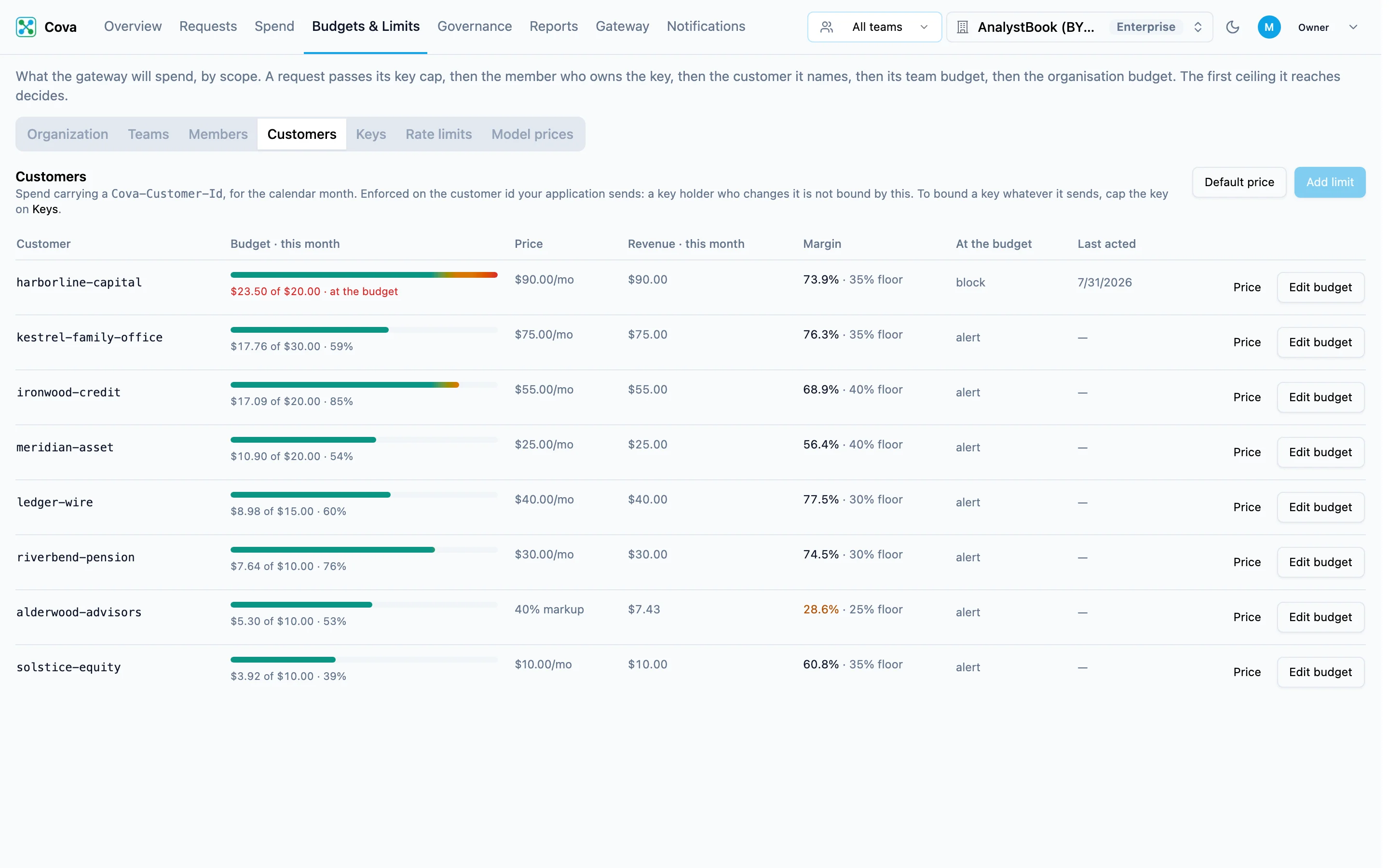
- Go to Budgets & Limits → Customers. Customers with a budget or a price are listed; every customer ID seen this month can be picked when you add one.
- Click Add limit, choose the Customer, and click Continue. (Or Edit budget on a row that has one.)
- Enter the Monthly budget (USD) and choose At the budget, then click Save.
Customer IDs are matched without regard to case: Acme-Corp and acme-corp are the same customer.
A customer budget is enforced on the ID your application sends. Anyone holding the key can send a different ID. To bound what a key can spend whatever it sends, cap the key.
Price and Default price on this tab record what you charge each customer, so the tab can show revenue and margin next to cost. They are available on the Growth and Enterprise plans.
Cap a virtual key
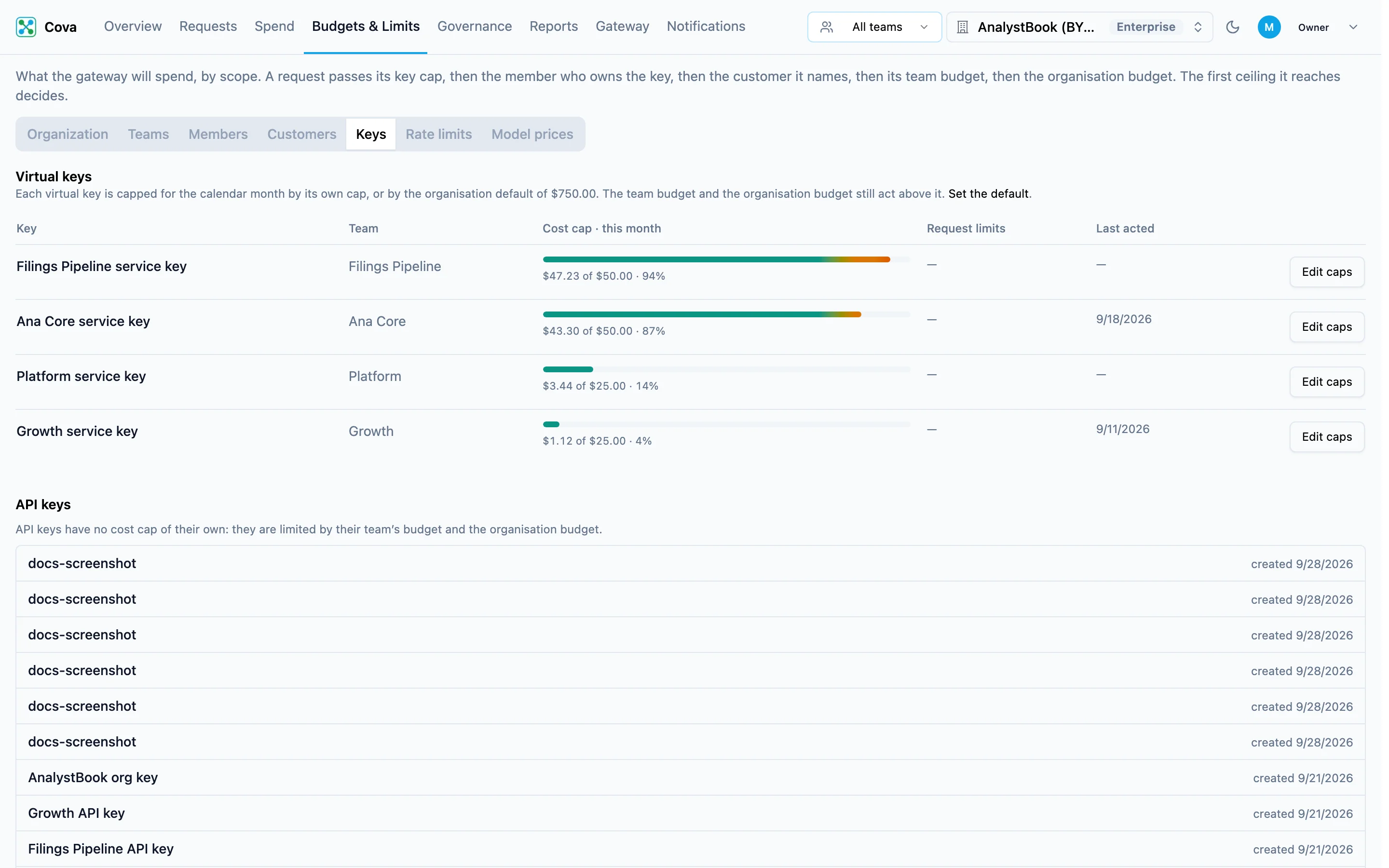
A virtual key is a CoreValue key that can carry its own limits: a monthly spending cap, and limits on how many requests it can make. Give a service its own virtual key when you want to cap that service on its own.
Find the key
Go to Budgets & Limits → Keys. Under Virtual keys, each row shows the key's team, how much of its cap is used this month, its request limits, and when a limit last acted.
Edit its caps
Click Edit caps.
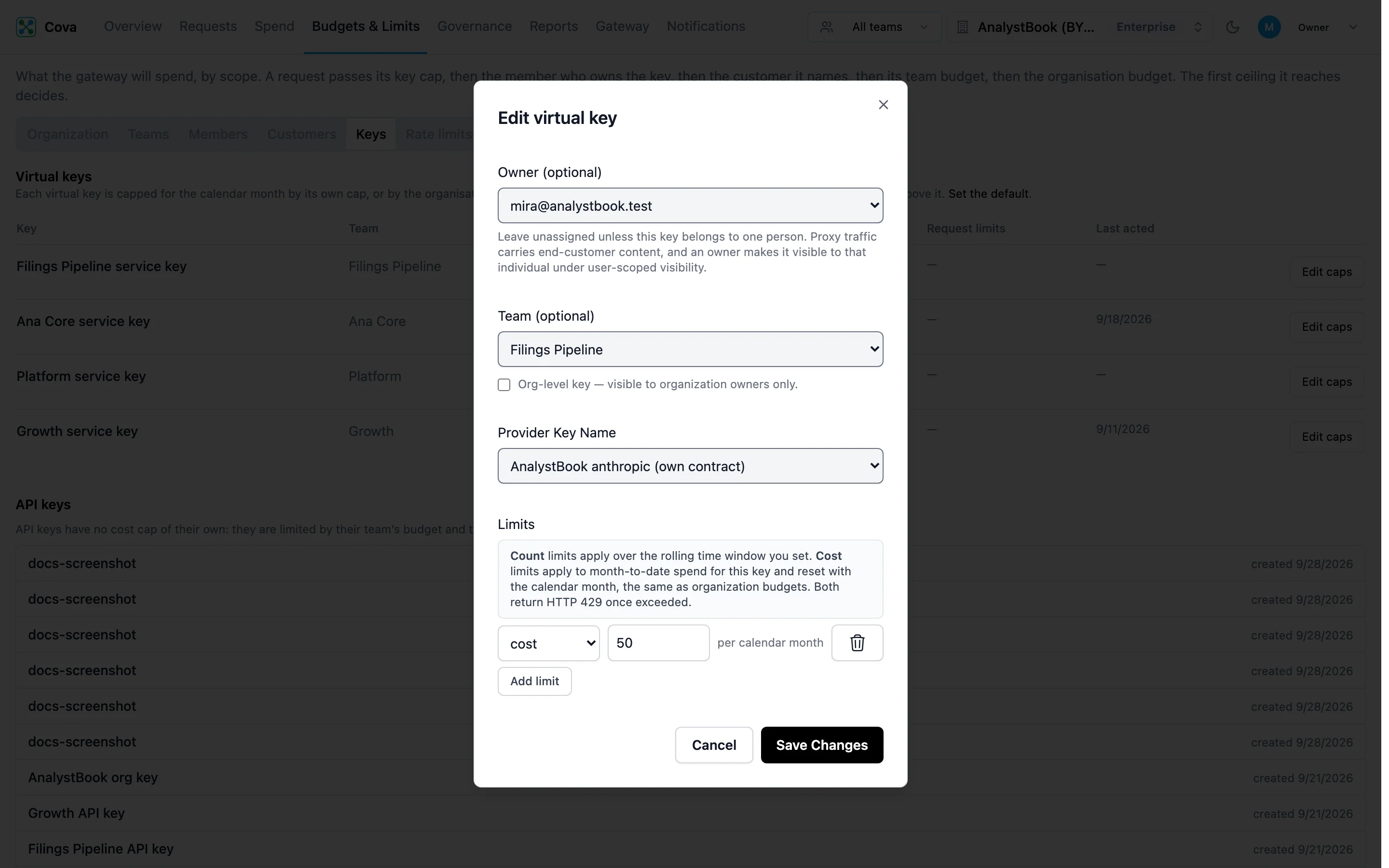
| Field | What it does |
|---|---|
| Owner (optional) | The member whose member budget this key counts towards. Leave it as Unassigned — shared service key for keys used by a service. |
| Team | The team whose team budget this key counts towards. |
| Limits | One row per limit. Click Add limit to add another. |
Each limit row is one of:
- Cost — US dollars per calendar month, for this key alone.
- Count — a number of requests per rolling window, in seconds, minutes, hours or days. For example 1,000 requests per 1 hour.
Save
Click Save Changes. A key over any of its limits gets HTTP 429 until the limit resets.
A key with no cost cap of its own uses the organisation's Default cap per virtual key, if you set one on the Organization tab.
API keys (listed under the virtual keys) have no cap of their own. They are limited by their team's budget and the organisation budget.
Get told before the budget runs out
Alerts are configured on Notifications → Budget alerts, not on this page.
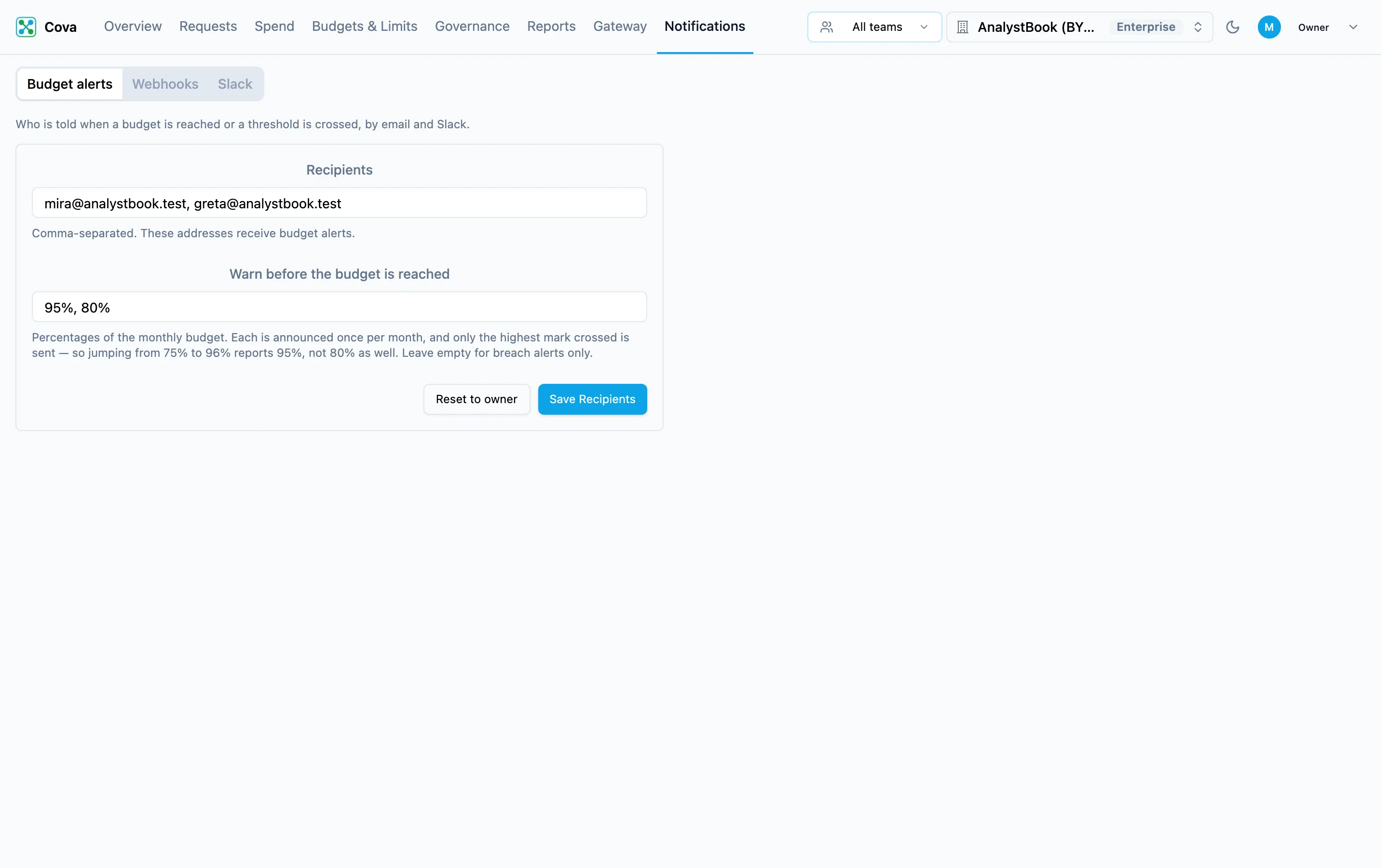
| Field | What it does |
|---|---|
| Recipients | Email addresses to notify. Defaults to the organisation owner — click Reset to owner to go back to that. |
| Warn before the budget is reached | Percentages of the budget at which to send an early warning, for example 80%, 95%. Only the highest mark crossed is sent. |
Click Save Recipients. Recipients are also emailed when a budget refuses, at most once an hour per budget.
See what your budgets did
Budgets & Limits → Actions shows what budgets, key caps, daily and yearly ceilings and velocity limits did to requests. Policy refusals (PII, key scopes, rate limits) are not included.
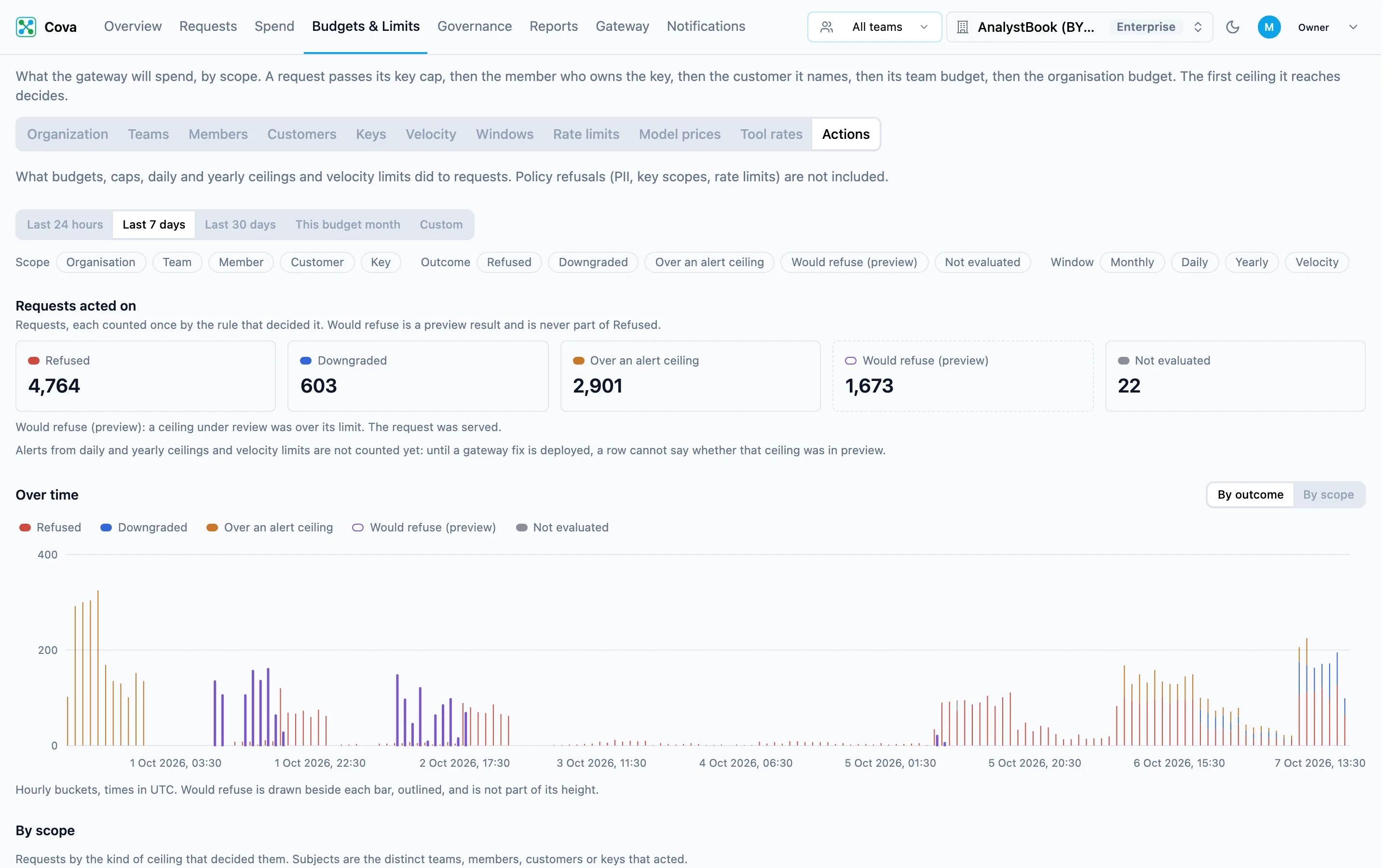
Pick a range (last 24 hours, 7 days, 30 days, this budget month, or custom dates up to 92 days) and, optionally, filter by scope, outcome and window. The tab shows:
| View | What it shows |
|---|---|
| Requests acted on | One figure per outcome: Refused, Downgraded, Over an alert ceiling, Would refuse (preview) and Not evaluated. Each request is counted once, by the rule that decided it. |
| Over time | The same requests per hour (ranges of 7 days or less) or per day, by outcome or by scope, in your budget time zone. |
| By scope | Each outcome per organisation, teams, members, customers, keys and velocity limits. Refusals made because a daily, yearly or velocity check could not be run belong to no single scope and have their own row. |
| Breakdown | The keys, teams, members, customers or models with the most requests acted on. Filter narrows the whole tab to one of them. |
| Event log | One row each time a budget, cap or ceiling acted in enforce: when, which scope and subject, the window, the action, the model, and the spend against the ceiling at that moment, with a link to the request. 25 rows a page. |
What the outcomes mean:
- Would refuse (preview): a ceiling that is still in preview was over its limit. The request was served. It is never counted as Refused.
- Over an alert ceiling: the request went over a ceiling whose action is alert, and was served. It does not mean an alert was delivered.
- Not evaluated: the budget could not be checked and your organisation fails closed, so the request was refused.
Member and customer budgets act only by refusing. Requests before 17 September 2026 carry no verdict and are not counted.
The counts and the event log count different things: the counts are requests, and the log has one row per layer that acted, so a request can appear in it more than once. The log records enforced actions only; filters it cannot apply (model, would refuse, not evaluated, velocity) are shown greyed out above it.
Breach History at the bottom of the Organization tab now links to this tab. The Teams, Members, Customers and Keys tabs still show a Last acted date per row.
Who can see it. The counts and the chart need the Read traffic permission; the event log needs Read reports. A member without Read reports sees the counts and a locked event log.
Rate limits
The Rate limits tab limits how many requests (or how many cents) the gateway accepts in a rolling window, independent of budgets.
-
Go to Budgets & Limits → Rate limits → Rate Limit Rules, and click Create Rule.
-
Fill in the rule:
Field What it does Default Rule Name A name for the rule. — Quota How many units are allowed per window. — Unit Requests or Cents. Requests Time Window (sec) The rolling window, in seconds — 3600for one hour.— Apply To All Requests (Global), Each User ID (per Cova-User-Id), or Custom Property (per value of aCova-Property-*header you name).All Requests (Global) -
Click Create Rule.
When several rules match a request, property rules apply first, then user rules, then global rules. Rate Limited Requests lists the requests that were refused.
What your application sees
A request stopped by a budget or cap gets HTTP 429, in the same error format as the provider you called, so your existing error handling keeps working. For an OpenAI-format request:
HTTP/1.1 429 Too Many Requests

{
  "error": {
    "message": "Monthly budget of $125.00 exceeded. Current spend: $125.04. Manage your budget at https://app.corevalue.dev/settings/budget",
    "type": "rate_limit_error",
    "code": null
  }
}
The message names the budget that refused: Monthly budget (organisation), Team "Platform" budget, Member budget, or the customer's budget.
HTTP/1.1 429 Too Many Requests

{
  "error": {
    "message": "Proxy key spend limit exceeded",
    "type": "rate_limit_error"
  }
}HTTP/1.1 429 Too Many Requests
Retry-After: 42
{
"error": {
"message": "Rate limit exceeded",
"type": "rate_limit_error"
}
}Rate-limit refusals carry a Retry-After header. Budget and cap refusals do not: they last until the month rolls over or you raise the limit.
Anthropic-format requests get {"type": "error", "error": {"type": "rate_limit_error", ...}}, and Gemini-format requests get "status": "RESOURCE_EXHAUSTED".
Troubleshooting
Related
- Quickstart — send your first request
- Block models — limit a key to certain models or providers
- Headers reference —
Cova-Customer-Id,Cova-User-Idand the rest