Members
Everyone who can sign in to your organisation, their role, and how to change or remove it.
A member is a person who can sign in to your organisation's console. Each member has one role, which decides what they can do. The members list is where you add people, change their role and remove them.
Before you start
| Requirement | Detail |
|---|---|
| Where | Top bar → Governance → Access (/governance?tab=access). Members is the first section; Teams is below it. |
| Role | Owner or Admin to add, change or remove members (the org.members.write permission). Everyone else sees the list with the controls disabled. |
| Owner only | Transferring ownership. |
What the list shows
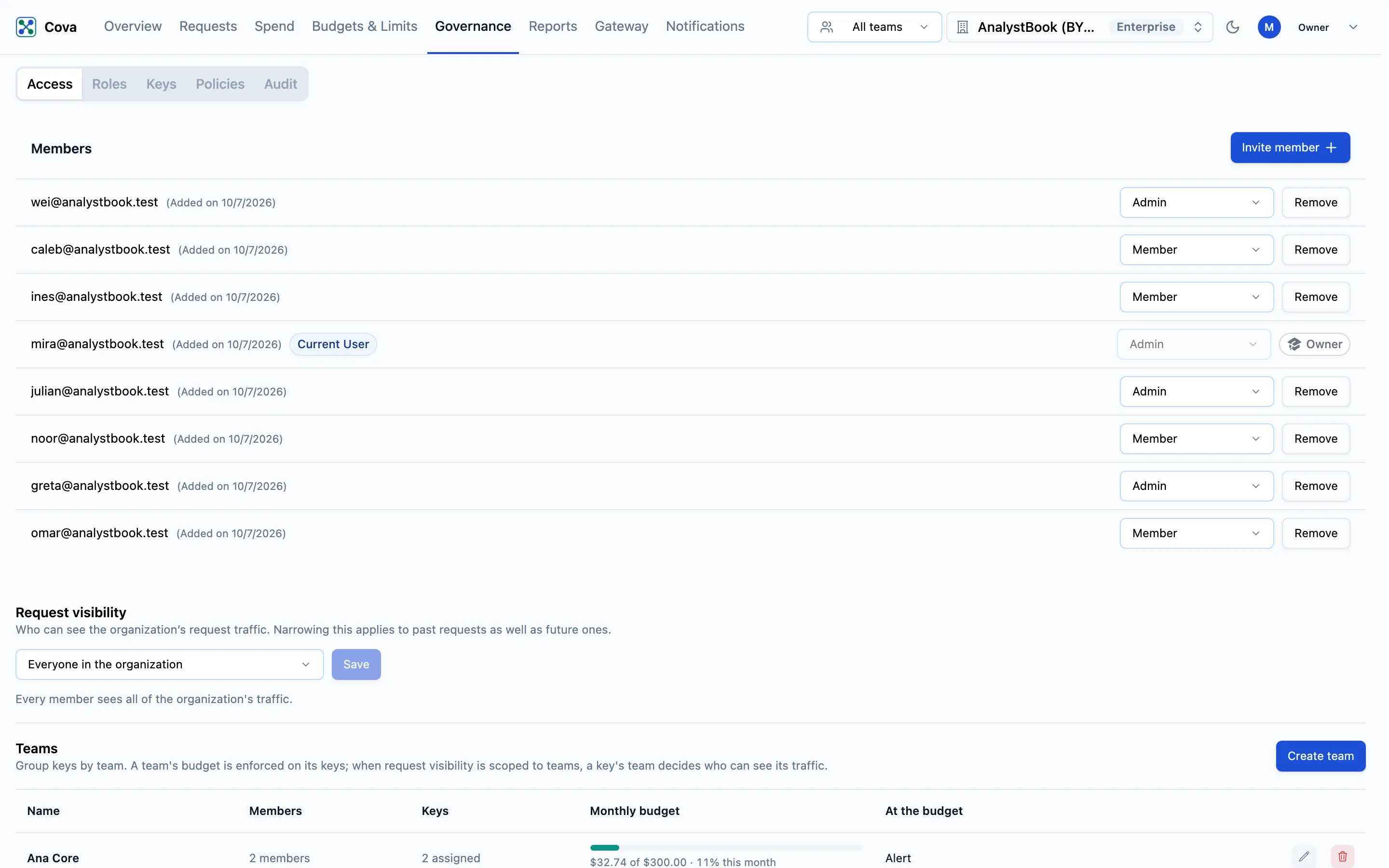
Each row shows the member's email, the date they were added, and their role. Your own row is marked Current User. The owner's row carries an Owner badge, and its role cannot be changed.
| Role | What it can do |
|---|---|
| Owner | Everything, including the owner-only actions: transfer the organisation, delete it, cancel the subscription and remove a payment method. There is one owner. |
| Admin | Everything except the owner-only actions. |
| Member | Reads requests and spend, and can annotate them. Cannot change settings or create keys. |
| Custom role | Enterprise only. A member who also holds the permissions you chose. See Roles and custom roles. |
The full list of what each role holds is on Roles and permissions.
Add a member
Click Invite member. Enter their Email, choose a Role, and click Send invitation.
- If the address belongs to someone who already has a confirmed CoreValue account, they are added straight away and appear in the list. No email is sent.
- Otherwise CoreValue would email them an invitation. Email invitations are in preview and not yet available — see Invites.
You can open the same dialog from the organisation menu at the right of the top bar → Invite members. On the Free plan, adding members is not included, and the button offers an upgrade instead.
Change a member's role
- Find the member in the list.
- Pick the new role from the selector on their row: Admin, Member, or one of your custom roles.
- The change saves straight away.
You cannot change your own role, and an admin cannot make anyone an owner.
Remove a member
Click Remove on their row, then Remove in the confirmation. They lose access to the organisation at once. Keys they own are not deleted and keep working, so if the person is leaving, reassign or delete their keys on Governance › Keys.
To leave an organisation yourself, click Leave on your own row. The owner cannot leave or be removed — transfer ownership first.
Transfer ownership
Only the owner can do this.
- On the new owner's row, pick Owner from the role selector.
- Click Transfer in the Transfer Ownership dialog.
The new owner gets the Owner badge, and you become an admin.
Related
- Teams — group members and keys
- Roles and custom roles
- Who sees whose requests
- Audit log — role changes and removals are recorded there