API keys and virtual keys
Create, edit and revoke the CoreValue keys your applications send to the gateway.
Your applications send a CoreValue key to the gateway in place of a provider key. There are two kinds, and both are used the same way: put the key where your SDK expects the provider key, and point the SDK at the gateway. See Authentication.
| Kind | Starts with | Use it when |
|---|---|---|
| API key | sk-cova- | A person or application needs a key. Its spend counts towards its team's budget and the organisation budget. |
| Virtual key | sk-cova-proxy- | A service should also have its own limits: a monthly cost cap and request-count limits. |
Before you start
| Requirement | Detail |
|---|---|
| Where | Top bar → Governance → Keys (/governance?tab=keys). |
| Role | Owner or Admin to create, edit, scope or delete keys (keys.write). Members see the table with the buttons disabled. |
| Provider keys | A virtual key asks you to pick a provider key, so add one on Provider keys first. |
The Keys table
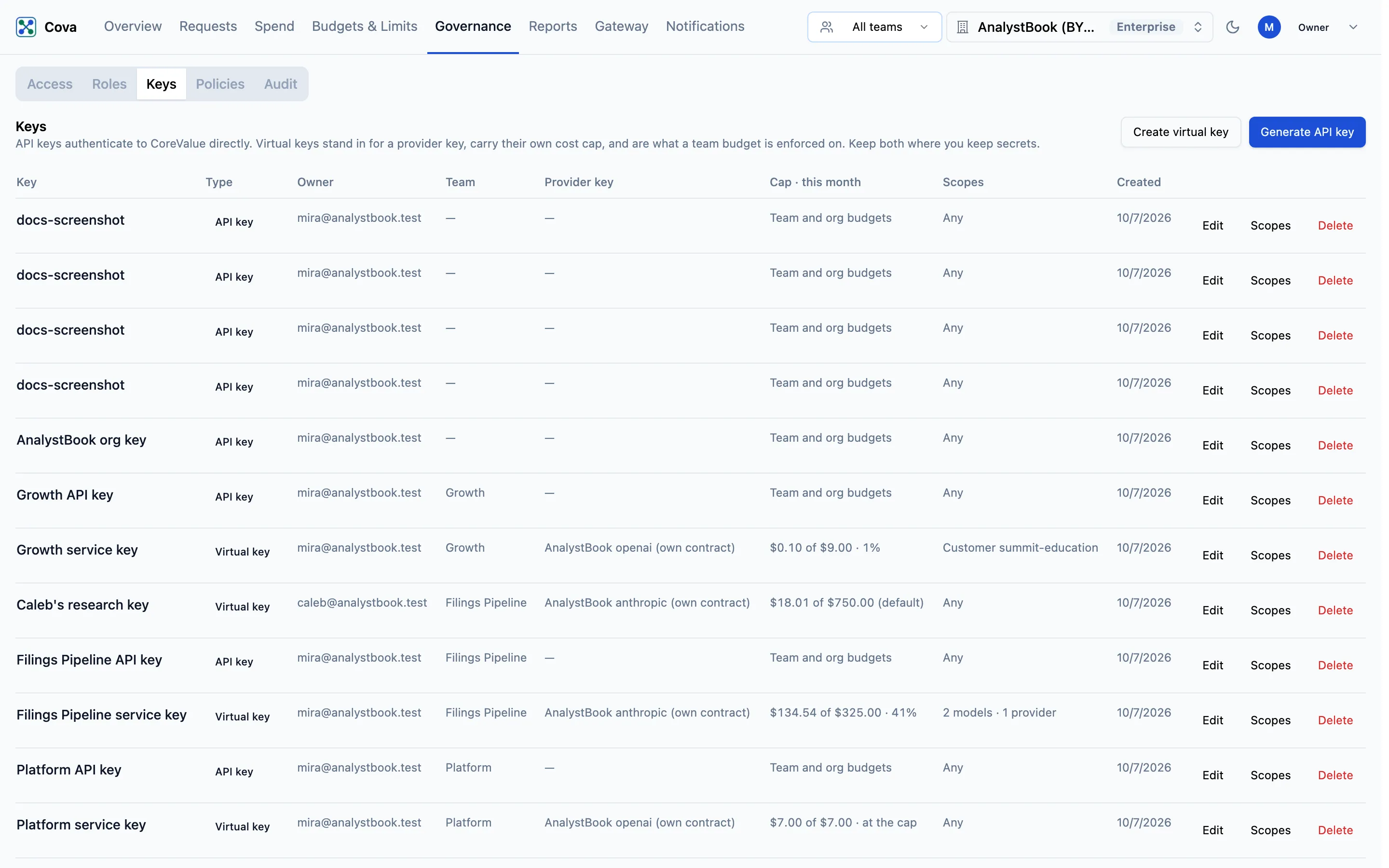
Both kinds of key are listed together, with their Type, Owner, Team, Provider key, Cap · this month, Scopes and Created date. An API key's cap column reads Team and org budgets: it has no cap of its own.
Create an API key
- Click Generate API key.
- Fill in the Create Key dialog and click Create Key.
- Copy the key from Your CoreValue Key. It is shown once; you cannot see it again.
| Field | What it does |
|---|---|
| Key Name | A name you will recognise in the table and the request log. Required. |
| Permissions | Write is always on. Read (on by default) also allows GET calls to the CoreValue API. Neither affects calling models through the gateway. |
| Owner | The member the key belongs to. Defaults to you. Their member budget counts this key's spend. |
| Team | The team whose budget and chargeback the key counts towards. Required when request visibility is scoped to teams or individuals. |
| Org-level key | Instead of a team: a shared service key whose traffic only owners can see. |
Create a virtual key
- Click Create virtual key.
- Fill in the dialog and click Create virtual key.
- Copy the key from Your virtual key. It is shown once.
| Field | What it does |
|---|---|
| Virtual key name | Required. |
| Owner (optional) | Leave as Unassigned — shared service key unless the key belongs to one person. |
| Team | As for an API key. |
| Org-level key | As for an API key. |
| Provider Key Name | One of your stored provider keys. Recorded on the key and shown in the table. The gateway still picks the provider key from the model you call; to limit which providers a key may use, set its scopes. |
| Limits | Click Add limit for each one. Cost is US dollars per calendar month for this key. Count is a number of requests per rolling window. Either returns HTTP 429 once exceeded. |
You can also change a virtual key's caps on Budgets & Limits › Keys.
Edit, scope or delete a key
Each row has three buttons:
- Edit — rename an API key, or change either kind's Owner and Team. Changing the owner or team does not rotate the key or interrupt anything using it. Moving a key changes where its future spend and traffic go; past requests stay with the team they were made under.
- Scopes — limit the key to certain customers, models or providers. See Key scopes.
- Delete — the key stops working immediately. Its history stays in the request log. This cannot be undone.
Give each application and environment its own key, so you can cap, scope and revoke one without touching the others. When someone leaves, reassign or delete the keys they own.