Provider keys
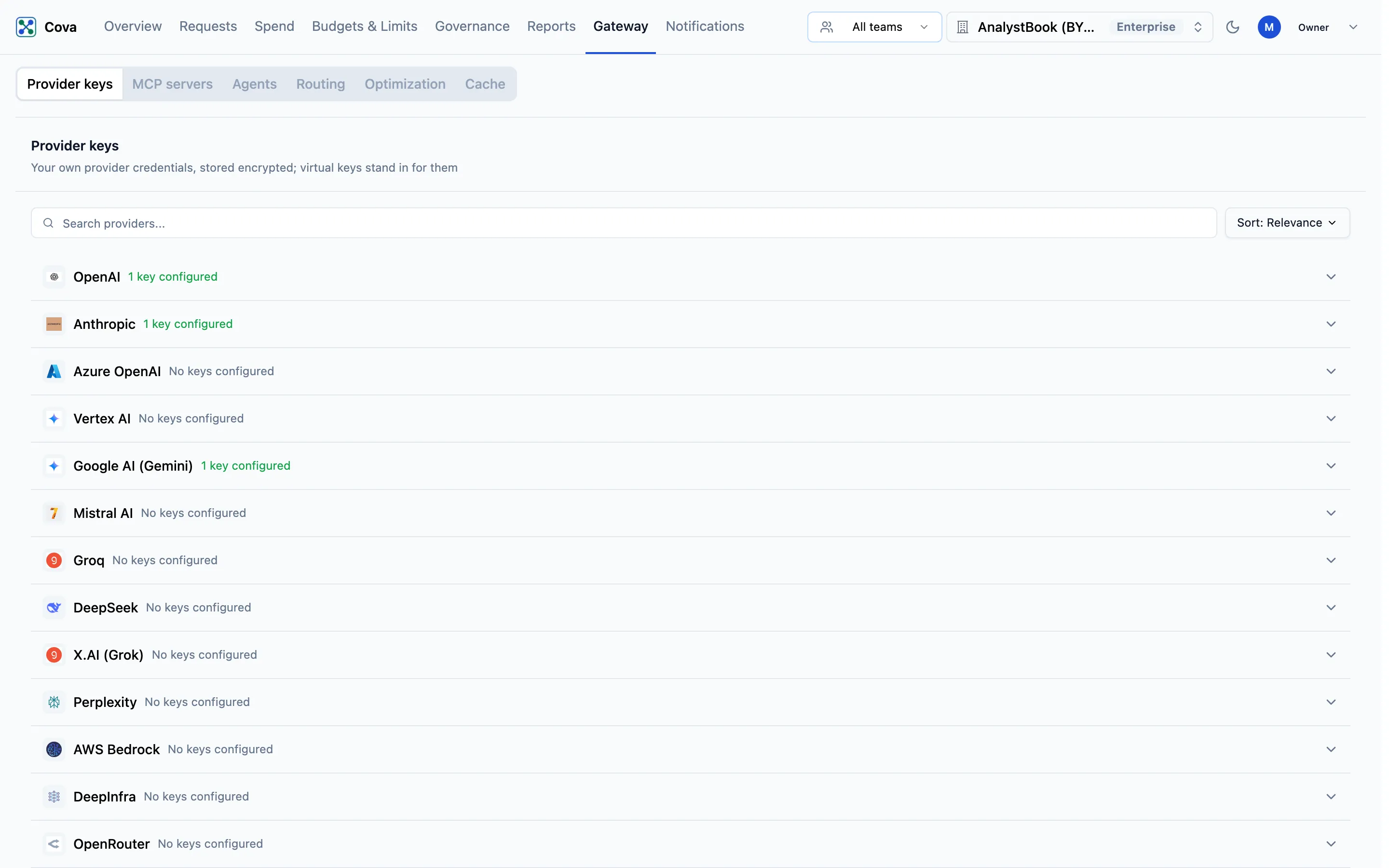
Add the keys CoreValue uses to call OpenAI, Anthropic and the other providers on your behalf.
A provider key is your own key from OpenAI, Anthropic, Google or another provider. You add it to CoreValue once. When a request reaches the gateway, CoreValue uses the provider key for that model's provider to make the call, and the provider bills you directly. This is often called BYOK — bring your own key.
Your provider keys are stored by CoreValue and never sent to your applications. Applications only ever hold a CoreValue key.
Before you start
| Requirement | Detail |
|---|---|
| Where | Top bar → Gateway → Provider keys (/gateway?tab=provider-keys). |
| Role | Owner or Admin (provider_keys.write). Anyone else sees Admin Access Required instead of the list. |
| You need | A key from the provider's own console. |
Add a provider key
- Find the provider in the list. Use Search providers... or the Sort menu to narrow it down. Each row shows No keys configured or how many keys are configured.
- Click the provider's row to open it.
- Paste the key into the key field. For Vertex AI, paste the Service Account JSON instead.
- Leave Enable for AI Gateway (BYOK) ticked, so the gateway uses this key.
- Fill in any extra fields the provider needs (below), then click Add.
The key is used from the next request.
Extra fields for some providers
| Provider | Fields |
|---|---|
| OpenAI | Endpoint Region: the default endpoint, or US Data Residency. |
| Azure OpenAI | Base URI, API Version, Deployment Name, and the model name CoreValue should record for it. |
| AWS Bedrock | Region and Cross Region. |
| Vertex AI | Region and Cross Region, with the service account JSON. |
Replace, turn off or delete a key
Open the provider's row. On a stored key:
- Edit, then enter the new key and click Save. Confirm with Update Key. The old value is replaced.
- Untick Enable for AI Gateway (BYOK) while editing, and save, to keep the key stored but stop the gateway using it.
- Delete, then Delete in the Delete Provider Key dialog. This cannot be undone.
Changes apply from the next request. If no enabled key is left for a provider, requests to that provider's models fail until you add one.
The eye icon shows the stored value to people who can manage provider keys, and the copy icon copies it.
More than one key for a provider
Some providers let you store several keys: click Add new key on the provider's row and give each one a name. Today the gateway uses only the first enabled key for that provider. Spreading requests across keys is not built yet; see Several keys for one provider.
Related
- API keys and virtual keys
- Call other providers
- Keep AI working when a provider fails
- Audit log — adding, changing and deleting provider keys is recorded