Billing, plans and credits
See your plan, change it, manage the subscription, and check your credit balance and invoices.
Billing shows which plan your organisation is on and what it has used this billing period. From there you can upgrade, manage the subscription, or contact us about Enterprise. Credits shows your credit balance and its history.
Model usage through your own provider keys is billed by the provider, directly to you. Your CoreValue plan is separate.
Before you start
| Requirement | Detail |
|---|---|
| Where | The organisation menu at the right of the top bar → Settings → Billing (/settings/billing) or Credits (/settings/credits). |
| Role | Anyone can open Billing. Owner or Admin to upgrade (billing.write). Owner only to manage or cancel the subscription and remove a payment method (ownership). Invoices and spend by model on Credits need reports.read. See Roles and permissions. |
Plans
There are three plans: Free, Growth and Enterprise. Some features in these docs name the plan they need — for example custom roles are Enterprise, and adding members needs a paid plan. For current prices and what each plan includes, see the pricing page on corevalue.dev.
What the Billing page shows
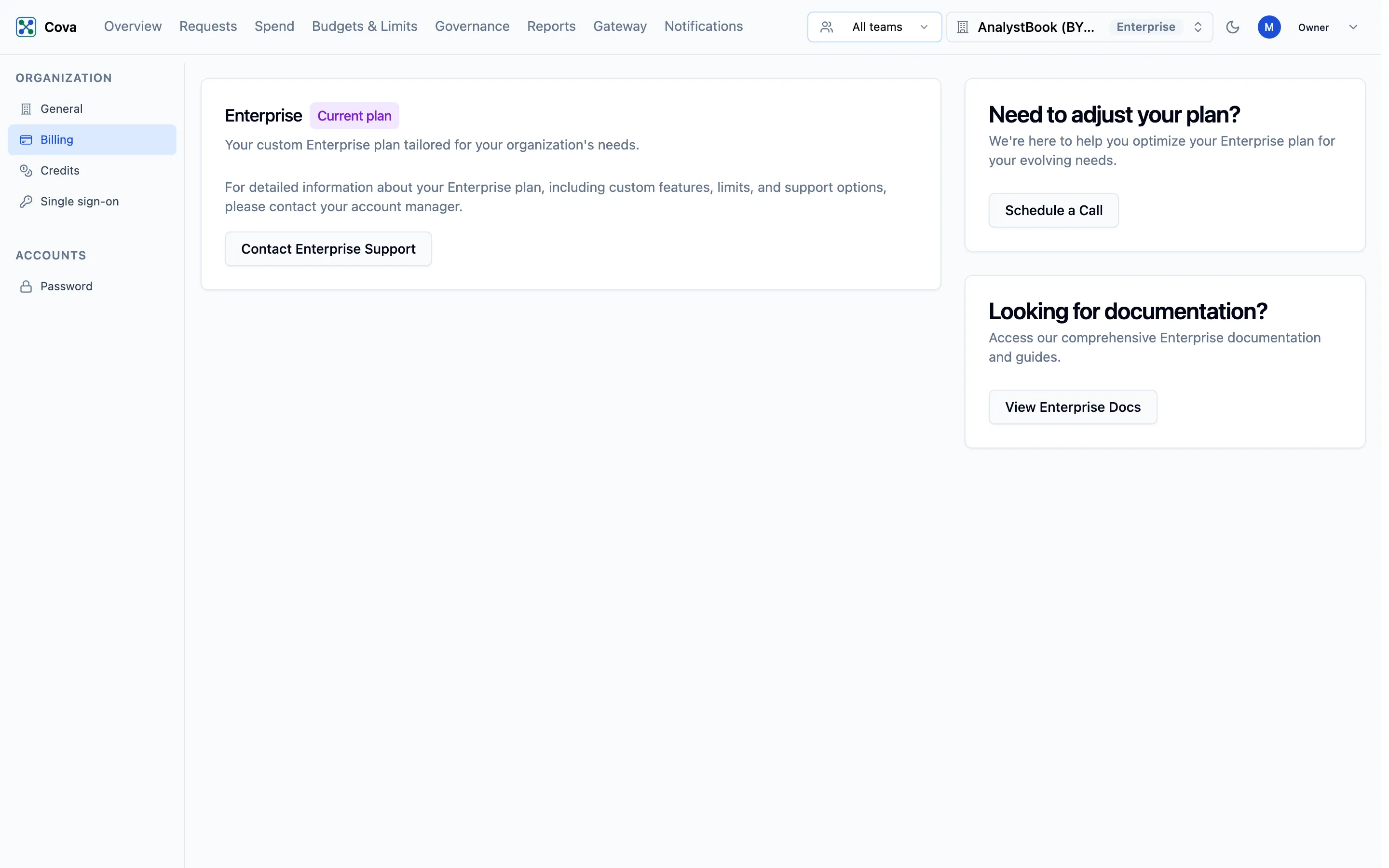
The page depends on your plan. Your plan is marked Current plan.
| Plan | What you see | What you can do |
|---|---|---|
| Free | The current billing period and Requests used against the plan's allowance. | Upgrade to Growth, or Contact Sales for Enterprise. |
| Growth | The current billing period and a chart of this period's usage. | Manage Subscription, View Upcoming Invoice, and Reactivate Subscription if a cancellation is pending. |
| Enterprise | A summary of your Enterprise plan. | Contact Enterprise Support about limits, features or changes. |
Upgrade to Growth
- On Billing, click Upgrade to Growth.
- In the Upgrade to Growth dialog, click Upgrade to Growth. A secure checkout page opens in a new tab.
- Complete the payment there. Your organisation moves to Growth when the checkout completes.
Manage or cancel the subscription
Only the owner can do this.
- On Billing, click Manage Subscription. The subscription page opens in a new tab.
- Manage the payment method and the subscription there, including cancelling it.
A cancelled subscription stays active until the end of the billing period. Until then, Reactivate Subscription on the Billing page undoes the cancellation.
View Upcoming Invoice shows what the next invoice will contain so far: its lines, subtotal, tax and total.
Credits
Settings → Credits has these tabs:
| Tab | Shows |
|---|---|
| Overview | Current Balance and Recent Transactions. |
| Usage | Spend paid for with credits, by model and provider, for a date range. Spend through your own provider keys is not included; see Spend for that. Needs reports.read. |
| Invoices | Appears when your organisation has invoices. Needs reports.read. |
| Discounts | Appears when discounts apply to your organisation. |
Buying credits is not available yet. The console does not offer credit purchases today, and only CoreValue can add credits to an organisation. Any balance and its history still show on the Credits page. Contact us if you would like to discuss using credits.