Invites (Preview)
Invite a teammate to your organisation by email.
Preview — not yet available. Email invitations are built but switched off on CoreValue's service for now. Until they are on, you can add only people who already have a confirmed CoreValue account. Contact us if you need a teammate added.
An invitation lets you add someone to your organisation by email, before they have a CoreValue account. This page describes how it works, so you know what to expect when it is turned on.
Before you start
| Requirement | Detail |
|---|---|
| Where | Top bar → Governance → Access → Invite member, or the organisation menu at the right of the top bar → Invite members. |
| Role | Owner or Admin (org.members.write). |
| Plan | Any plan except Free. On Free, the button offers an upgrade instead. |
Invite someone
- Click Invite member.
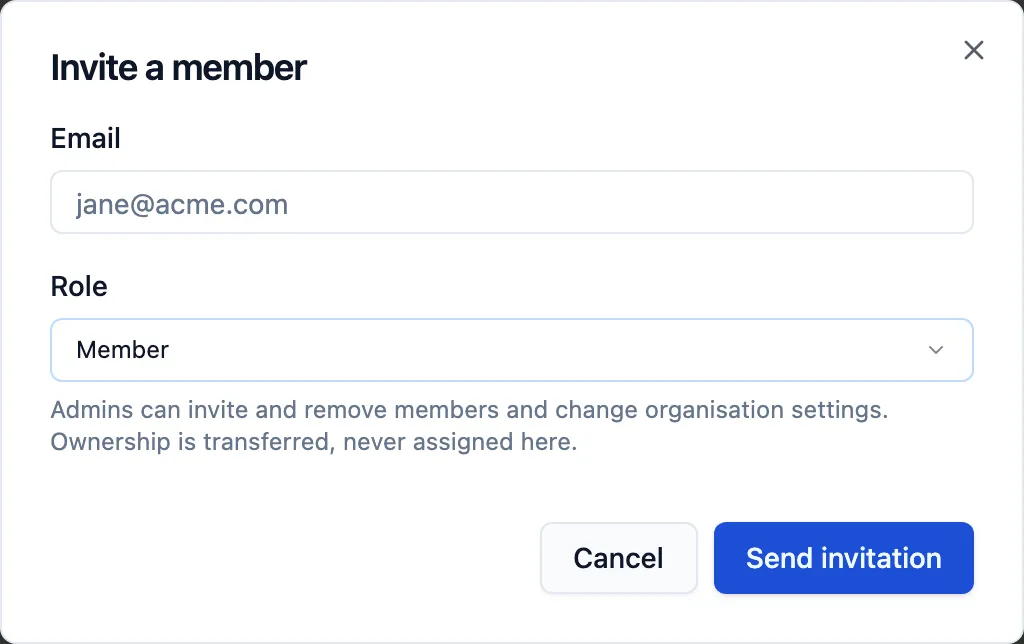
- Enter their Email.
- Choose a Role: Member, Admin, or one of your custom roles on Enterprise. Owner is never offered; ownership moves only by transfer.
- Click Send invitation.
What happens next depends on the address:
| The address belongs to | What happens |
|---|---|
| Someone with a confirmed CoreValue account | They are added to the organisation straight away. No email is sent. This works today. |
| Nobody yet, or an account that never confirmed its email | They are added to the list and sent one email. The dialog shows Invitation sent. This is the part in preview. |
What the invitee receives
One email with a link. The link confirms their email address and lets them choose a password; after that they can sign in to your organisation with the role you chose.
The link works for seven days. If it expires or the email is lost, invite the same address again to send a new link.
Cancel an invitation
The invited person appears in the members list as soon as you invite them. To withdraw the invitation, click Remove on their row.
If something goes wrong
- "Invitations are switched off on this deployment" — email invitations are not on yet. Contact us to have the person added.
- The address is already a member — nothing changes; the dialog closes.
Every invitation is recorded in the audit log as member.invited.